Linux:
Linux File Permission Management and Security
In this project, I was tasked with reviewing and updating file and directory permissions within the projects directory. Some of the existing permissions granted a level of access that did not match the intended authorization settings. To improve security, I examined the current permissions, identified any files and directories with incorrect access levels, and updated them to follow the project's security requirements.
Check file and directory details
I needed to review the existing permissions on a directory to determine whether they matched the required access levels. To do this, I used Linux commands to examine the current permissions assigned to the directory and identify any settings that needed to be updated.
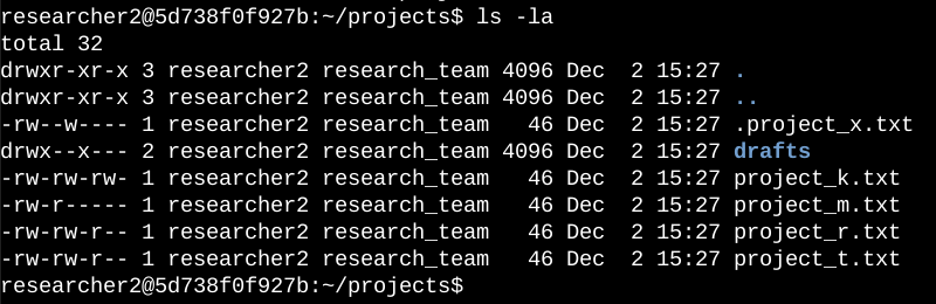
The first line of the screenshot shows the command I entered, and the remaining lines show the output. To view the contents of the projects directory, I used the ls -la command. The ls command lists the files and directories, while the -la option provides a detailed view and includes hidden files.
From the output, I could see one directory named drafts, one hidden file named .project_x.txt, and five additional project files. The first column contains a 10-character string that represents the permissions assigned to each file and directory. Reviewing these permissions allowed me to identify which files and directories required updates to meet the project's security requirements.
Permissions string
The permissions shown in the first column can be broken down to determine who has access to a file or directory and what actions they are allowed to perform. The first character indicates whether the item is a file or directory. A d means it is a directory, while a - means it is a regular file.
The next nine characters are divided into three groups of three. The first group shows the permissions granted to the file owner, the second group shows the permissions granted to the group, and the third group shows the permissions granted to all other users. Within each group, r represents read permission, w represents write permission, and x represents execute permission. A hyphen (-) indicates that a particular permission has not been granted.
For example, the permissions for project_t.txt are -rw-rw-r--. The initial - indicates that project_t.txt is a file rather than a directory. The owner and group both have read and write permissions (rw-), while other users have read-only access (r--). No users have execute permissions because there are no x characters in the permission string.
Change file permissions
Since this project focused on improving file permissions, I first reviewed the existing permissions and identified that project_k.txt granted write access to other users. Because users classified as "other" should not have write access, I needed to remove that permission while leaving the remaining permissions unchanged.
The following code demonstrates how I used Linux commands to update the permissions for project_k.txt.
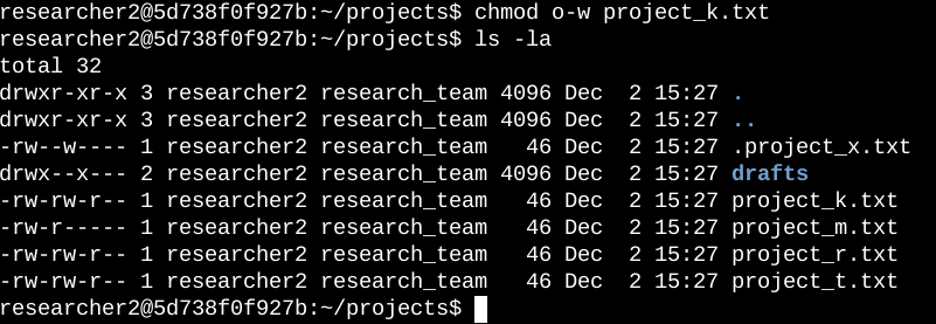
The first two lines of the screenshot show the commands I entered, and the remaining lines show the output from the second command. I used the chmod command to modify the permissions on project_k.txt. With chmod, the first argument specifies which permissions should be changed, while the second argument identifies the file or directory being updated.
In this case, I removed write permissions for other users on project_k.txt because that level of access was not appropriate. After making the change, I ran the ls -la command again to verify that the permissions had been updated correctly and that other users no longer had write access to the file.
Change file permissions on a hidden file
Since this project involved securing archived files, I needed to update the permissions on project_x.txt so that no users would have write access. However, the file still needed to remain readable by the user and the group. The following code demonstrates how I used Linux commands to modify the permissions and ensure they reflected the intended level of access.
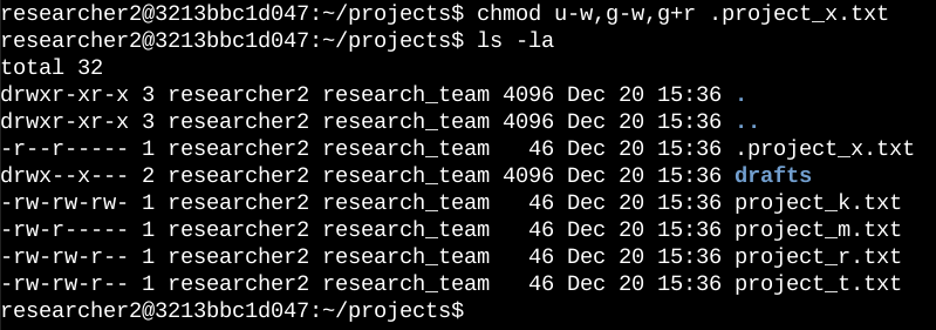
The first two lines of the screenshot show the commands I entered, and the remaining lines show the output from the second command. I recognized that .project_x.txt is a hidden file because its name begins with a period (.), which is how hidden files are represented in Linux.
To update the permissions, I used the chmod command. I removed write permissions from the user with u-w and removed write permissions from the group with g-w. Since the group still needed read access to the file, I added read permissions using g+r. These changes ensured that neither the user nor the group could modify the file, while still allowing the user and group to view its contents.
Change directory permissions
Since this project required restricting access to the drafts directory, I needed to update the permissions so that only the user researcher2 would have execute access. Removing execute permissions from the group and other users prevents them from accessing the directory and its contents. The following code demonstrates how I used Linux commands to modify the permissions and restrict access to only the intended user.
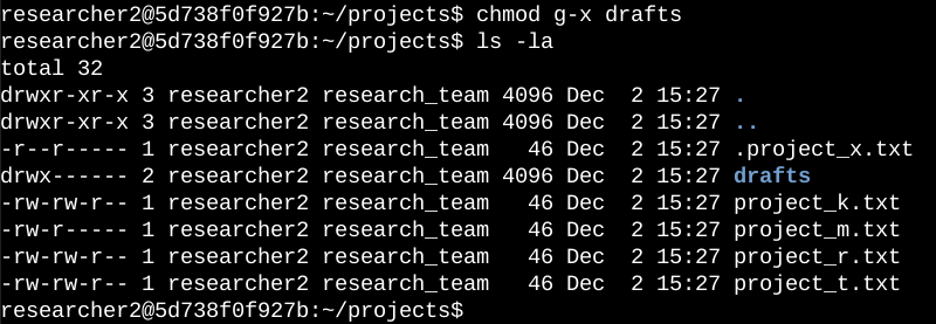
The first two lines of the screenshot show the commands I entered, and the remaining lines show the output from the second command. After reviewing the permissions, I determined that the group had execute permissions on the drafts directory, which needed to be removed. To make this change, I used the chmod command to remove execute permissions from the group. The user researcher2 already had the necessary execute permissions, so no additional permissions needed to be granted. After making the update, I verified that the permissions reflected the intended access level and that only researcher2 retained execute access to the directory and its contents.
Summary
In this project, I updated file and directory permissions to match the required level of access within the projects directory. I started by using the ls -la command to review the existing permissions and identify any files or directories with incorrect settings. Based on what I found, I used the chmod command to modify permissions and ensure that access was limited to the appropriate users and groups. By reviewing and updating these permissions, I was able to improve the security of the directory and better protect its contents.